

Products and variants
Add products with photos, prices, stock, variants, add-ons and categories.
- Product
- SHOPFastrac Shop
- Section
- Your store
- Reading time
- 5 min read
Products are what buyers see and order. Each product has shipping details and at least one variant, which holds the price and stock (for example 250 g, 500 g and 1 kg). Use add-ons (Pilihan tambahan) for optional extras, and categories (Etalase) to group products on your storefront.
Who can do this
- The store owner, or a member whose role can manage the product catalog.
Steps
Add a product
- Open Fastrac Shop › Products (Produk) and click Tambah produk (add product).
- Fill in the five sections:
- Informasi produk: Nama produk (name) and Deskripsi (description).
- Foto produk: up to 3 photos (JPG, PNG or WEBP, up to 5 MB each). The first photo is the main one.
- Informasi pengiriman (shipping details): Jenis barang (package type), Berat 1 barang setelah dikemas (gram) (packed weight of one item, in grams), Barang mudah pecah (fragile) and Ukuran 1 barang setelah dikemas (cm) (Panjang, Lebar, Tinggi). Couriers price from these, so measure the packed product.
- Tampilan di toko (storefront display): Etalase (category), Status penayangan (visibility) and Urutan tampil (sort order).
- Varian produk, harga, dan stok: add at least one variant (see below).
- Click Simpan produk (save product).
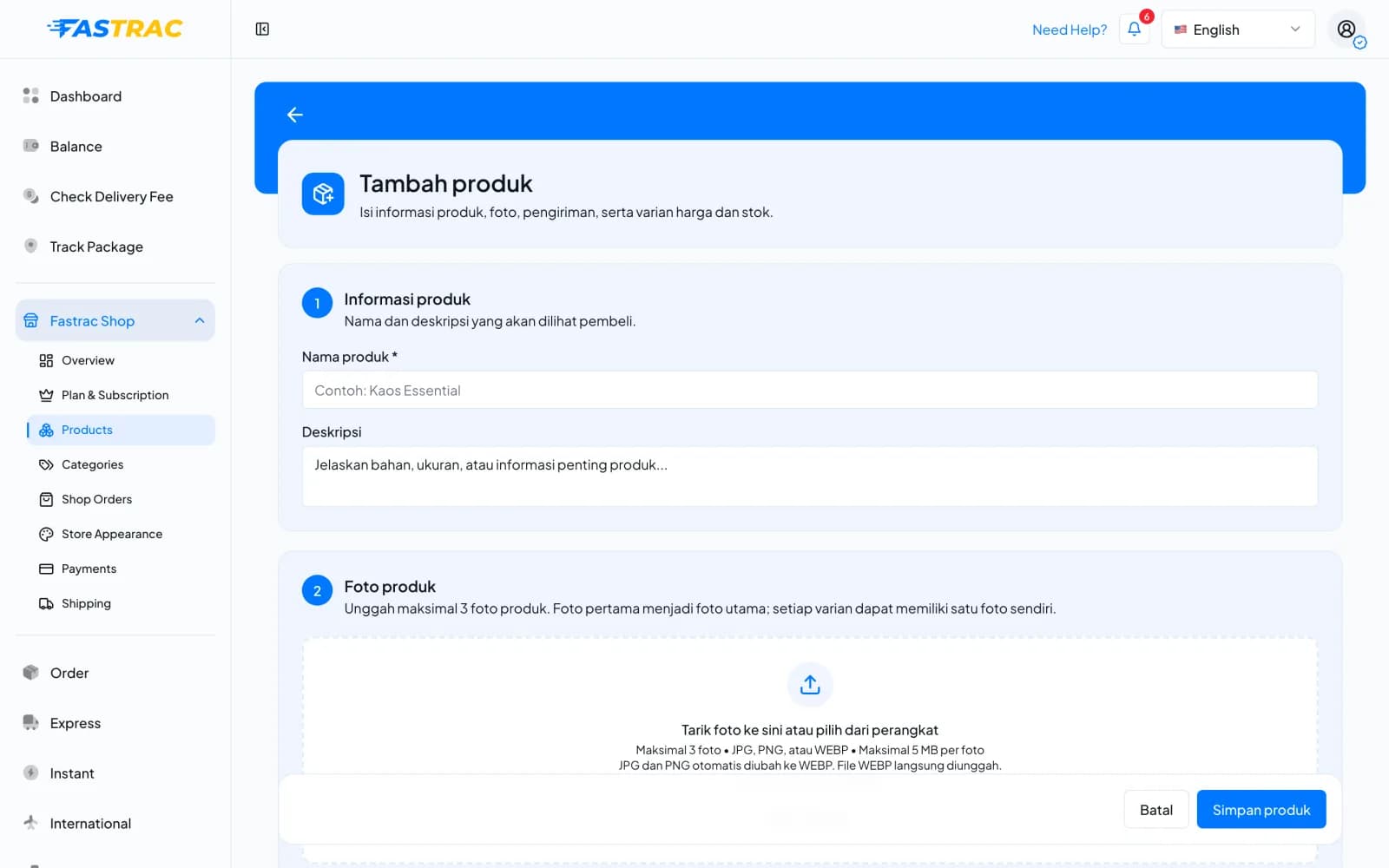
Only products set to Tayang di toko (published) can be ordered.
Add or edit variants
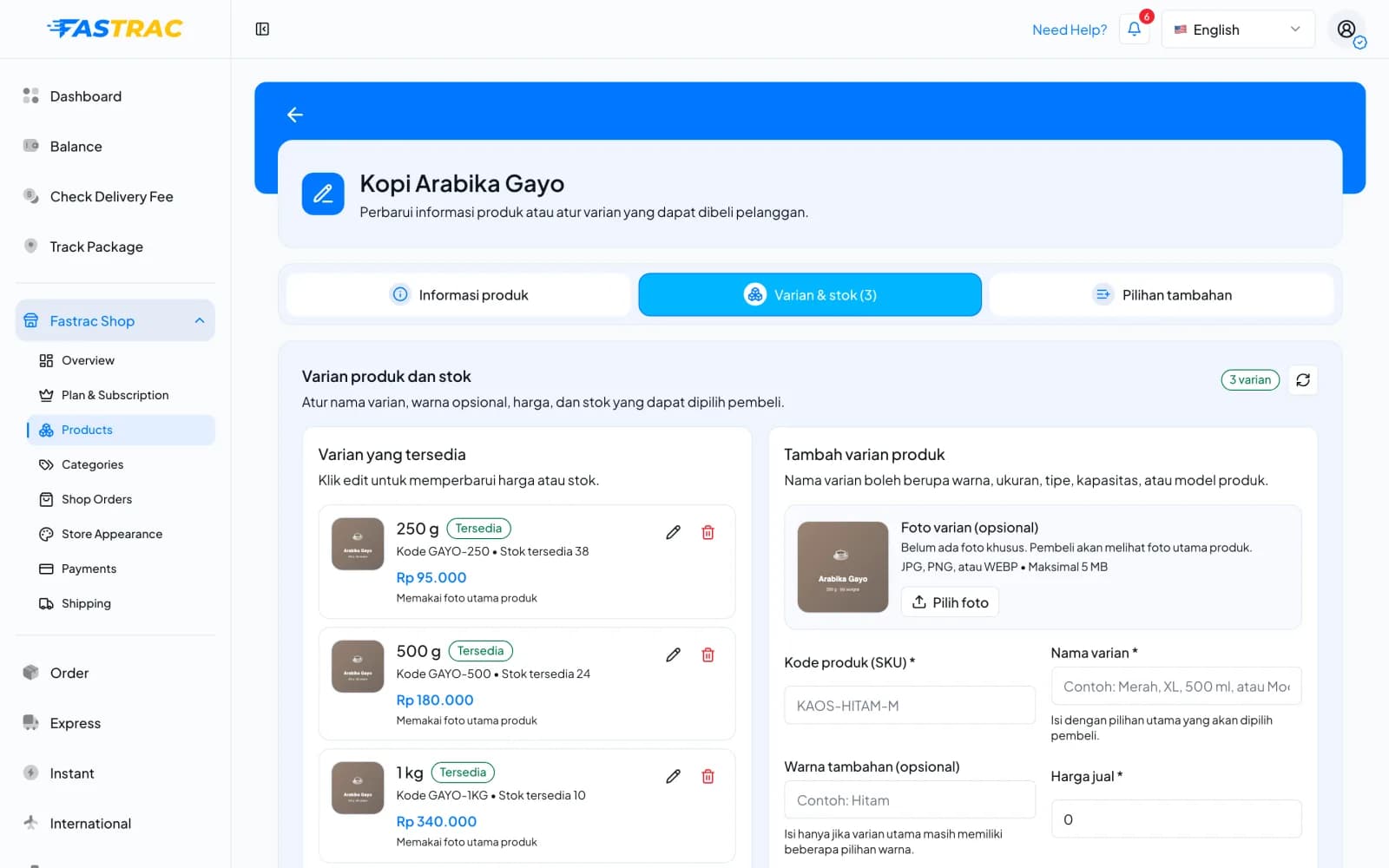
- On Produk, click Atur varian (manage variants) on the product card, or open the Varian & stok tab when editing a product.
- Under Tambah varian produk, fill in Kode produk (SKU), Nama varian (for example a size or model), and optionally Warna tambahan (colour) and Foto varian.
- Set Harga jual (selling price), optionally Harga sebelum diskon (price before discount, shown crossed out), and Jumlah stok (stock).
- Set Ketersediaan (availability): only variants available to buy (Tersedia untuk dibeli) can be ordered. Urutan varian sets the order.
- Click Tambah varian. To change a variant under Varian yang tersedia, click its pencil icon.
Add add-ons
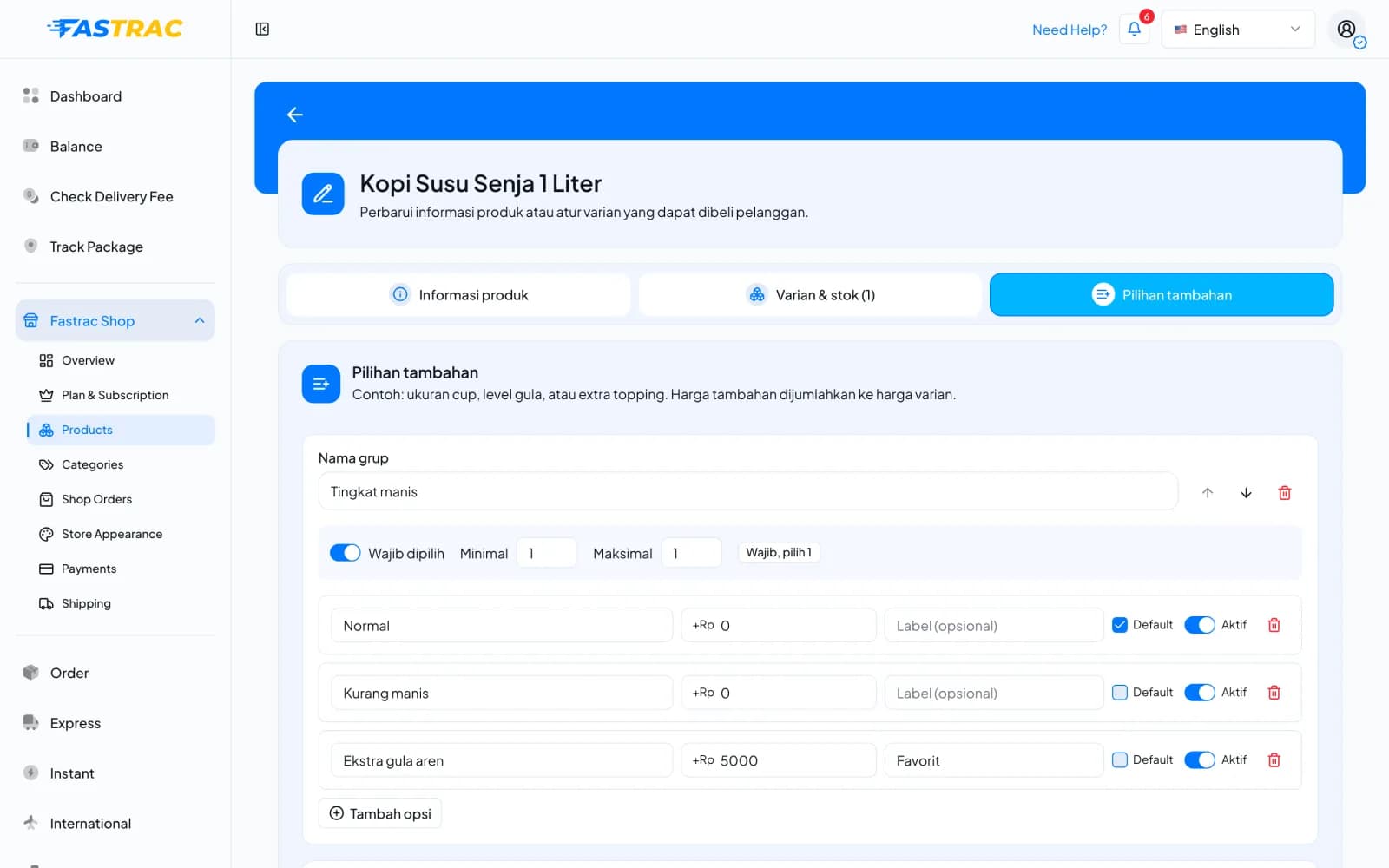
Add-ons (Pilihan tambahan) are optional extras such as a sugar level or an extra shot. Their price is added to the variant price.
- Edit the product and open the Pilihan tambahan tab.
- Click Tambah grup pilihan (add group) and enter Nama grup (for example "Tingkat manis").
- Turn on Wajib dipilih if buyers must choose, and set Minimal and Maksimal (how many options a buyer can pick).
- Add options with Tambah opsi: a name, the extra price (+Rp), an optional Label, and whether it is Default and Aktif.
- Click Simpan pilihan tambahan (save add-ons).
Create categories
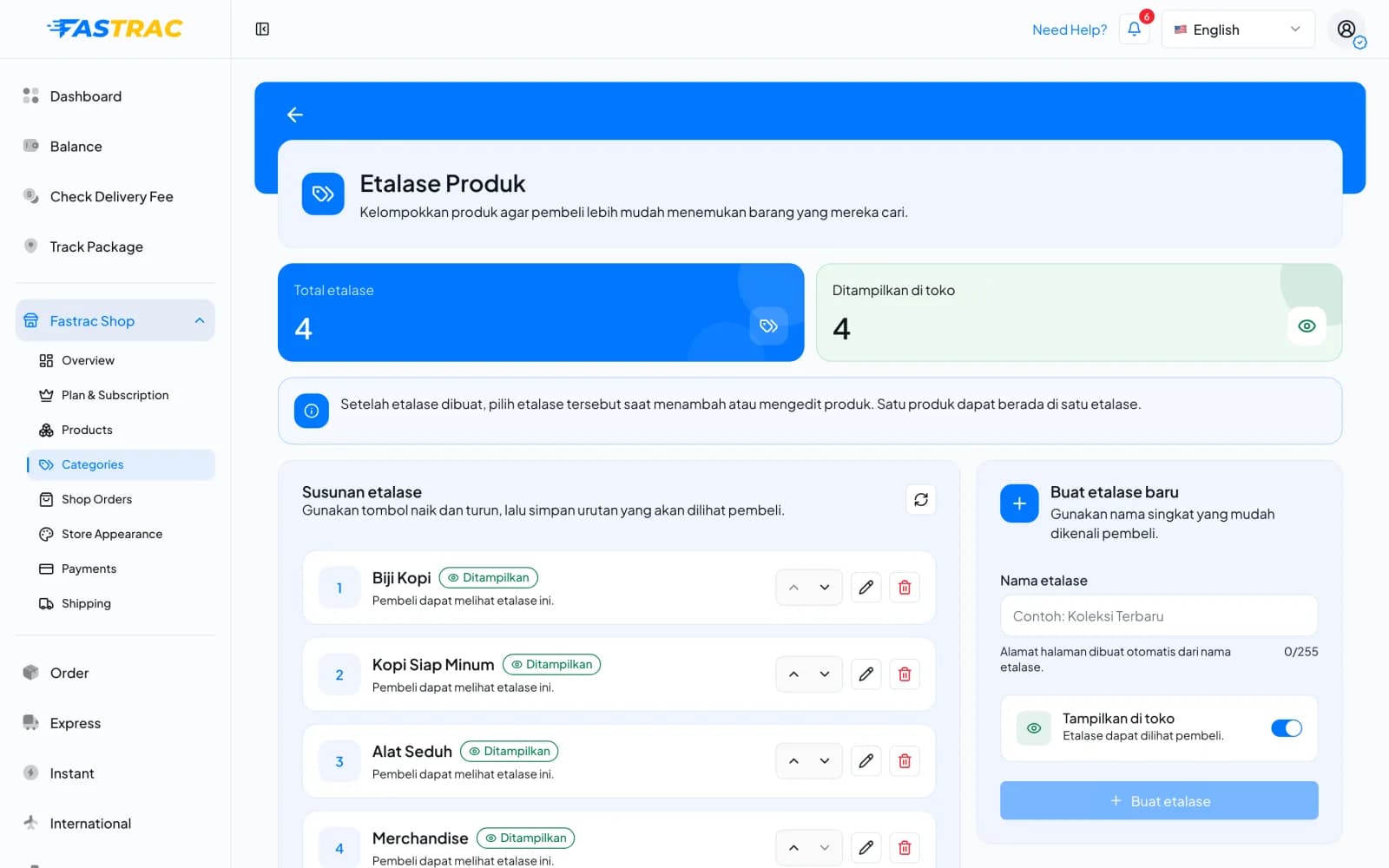
- Open Fastrac Shop › Categories (Etalase Produk).
- Under Buat etalase baru, enter Nama etalase (the page link is made from the name), choose whether to show it with Tampilkan di toko, and click Buat etalase.
- Under Susunan etalase, use the up and down arrows to set the order buyers see, the pencil to rename, or the trash icon to delete.
- Assign products to a category with the Etalase field in the product form. A product can be in one category.
Product statuses
| Status | Label in the product form | Meaning |
|---|---|---|
DRAFT | Belum tayang di toko | Saved but not visible to buyers |
PUBLISHED | Tayang di toko | Visible and can be ordered |
UNPUBLISHED | Disembunyikan dari toko | Temporarily hidden from buyers |
ARCHIVED | Arsipkan produk | Not shown; kept as an archive |
Limits
| Item | Limit |
|---|---|
| Photos per product | 3 |
| Variant SKU | Up to 150 characters |
| Variant model / colour | Up to 255 / 50 characters |
| Add-on groups per product | 10 |
| Options per add-on group | 1–20 |
| Add-on option price | Rp 0 to Rp 10.000.000 per item |
| Prices and stock | Whole numbers, 0 or more |
How stock works
- Stock is reduced when a buyer checks out, so two buyers can't buy the last item twice.
- If the order is cancelled or expires unpaid, the stock is returned.
- Add-ons have no stock and don't change the parcel's weight or size.
FAQ
The requested quantity is more than the stock left. Increase the stock, or the buyer orders fewer.
Shipping rates are calculated from the weight and size of the items in the cart. Wrong values mean wrong shipping prices and possible price adjustments that you pay.
When add-ons change while an item is in a buyer's cart, the buyer is asked to review the cart.
Was this page helpful?