

Set up your store
Create your store, choose its link, set the origin address and customise its look.
- Product
- SHOPFastrac Shop
- Section
- Get started
- Reading time
- 4 min read
Create your store once, choose its link (the slug), and set the address you ship from. Then make it yours with a logo and, with Branding Pro, your own colours and font.
Who can do this
- The store owner. Each account can have one store.
- The store goes live for buyers only after you activate a plan.
- Changing the logo needs an active plan (Paket Dasar). Colours, background, font and changing the store link need Branding Pro.
Steps
Create the store
- Open Fastrac Shop › Overview. Until the store is live, it shows the steps to open it (Langkah buka toko): Verifikasi WhatsApp, Verifikasi bisnis, Buat toko, Atur pengiriman, Atur cara pembayaran, Tambah produk pertama and Aktifkan paket & tayangkan toko.
- Complete the verification steps first. Then, in Buat toko (create store), enter the store name and the store link.
- Your store link is
your-slug.fastrac.shop.
Set the origin address
The origin address is set on Fastrac Shop › Shipping, under Alamat asal pengiriman (origin address). Pick an address with a pinned location, ideally from your address book. Couriers price from this address. See Shipping settings.
Customise the look
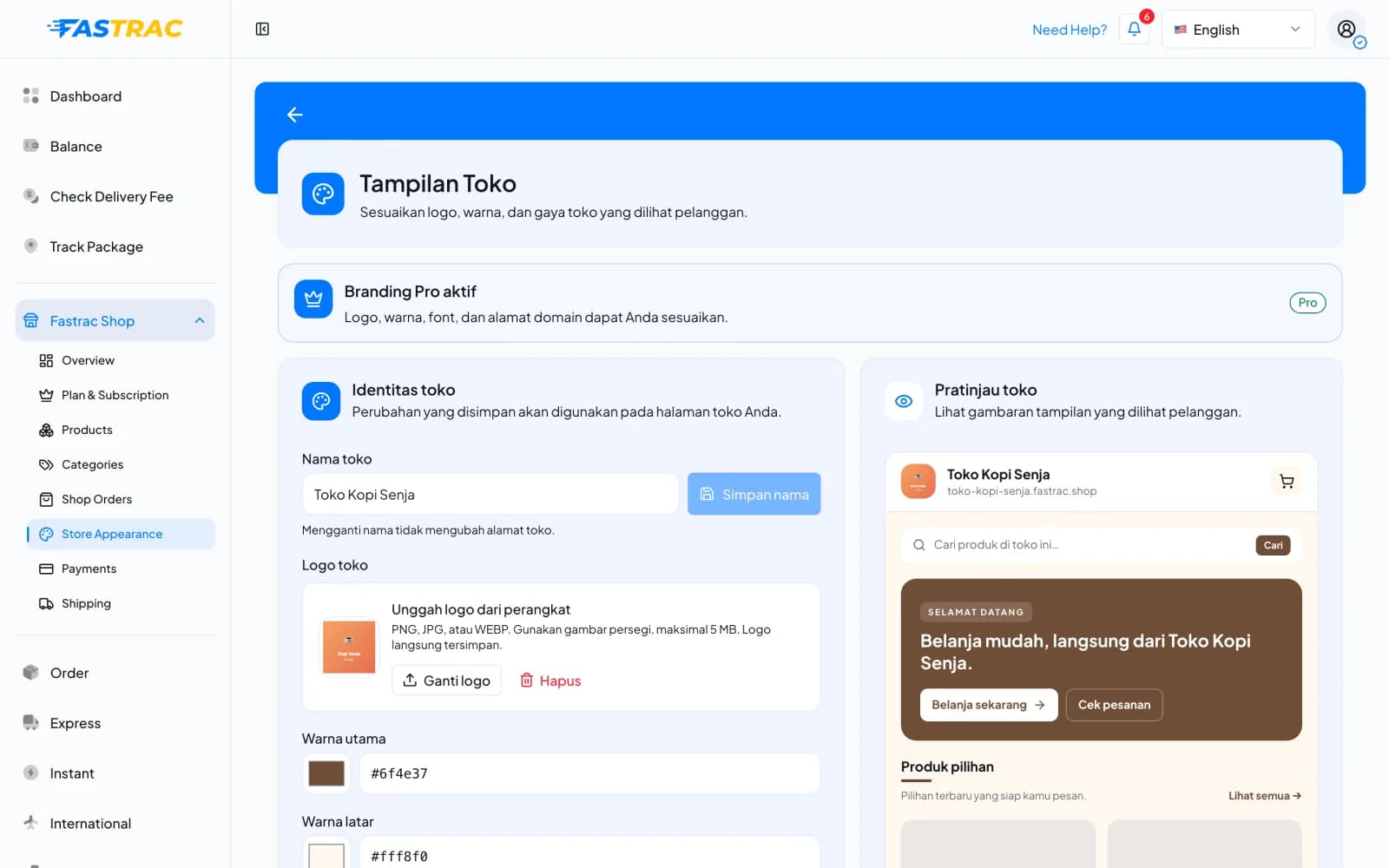
- Open Fastrac Shop › Store Appearance (Tampilan Toko). Pratinjau toko on the right previews what buyers see.
- Under Nama toko, change the store name and click Simpan nama. Changing the name doesn't change the store link.
- Under Logo toko, click Ganti logo to upload a logo (PNG, JPG or WEBP, square, up to 5 MB), or Hapus to remove it. The logo is saved right away.
- With Branding Pro, set Warna utama (main colour) and Warna latar (background colour) as hex codes, and choose a Font. Click Simpan tampilan, or Kembalikan warna default to go back to the default colours.
Change the store link (Branding Pro)
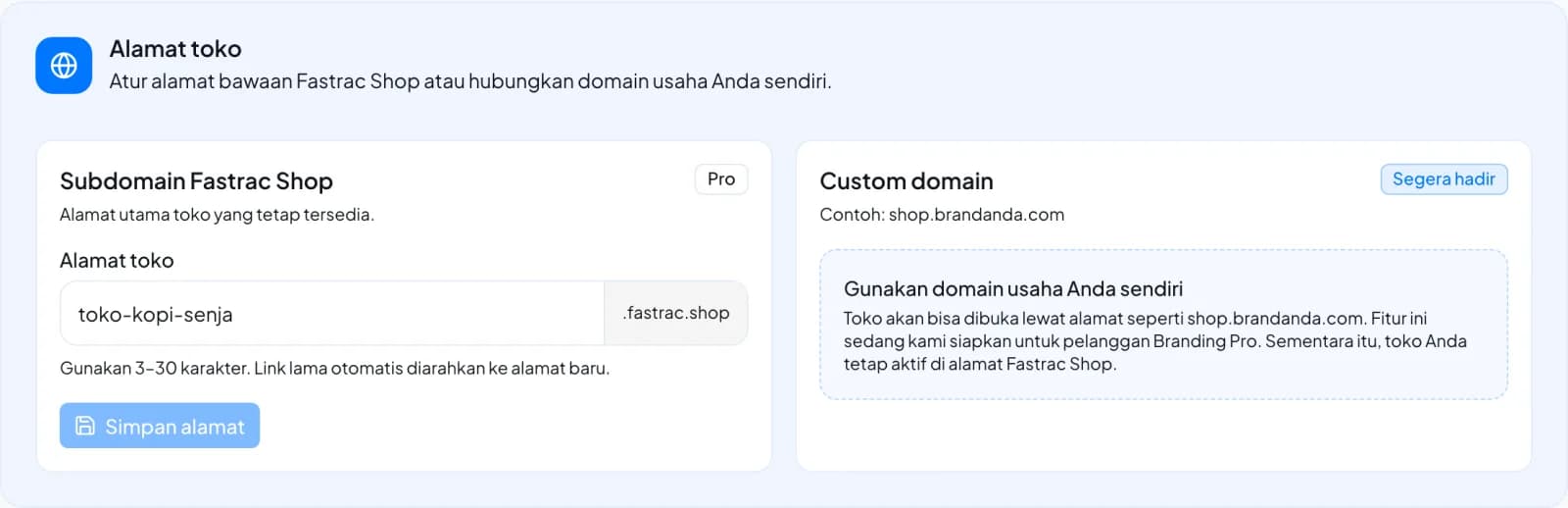
- On Store Appearance, scroll to Alamat toko (store address).
- Under Subdomain Fastrac Shop, enter the new slug in Alamat toko and click Simpan alamat. The old link keeps working and sends buyers to the new one.
Slug rules
| Rule | Detail |
|---|---|
| Length | 3–30 characters |
| Characters | Lowercase letters a–z, digits 0–9 and hyphens; no hyphen at the start or end, no double hyphens |
| Spaces and capitals | Converted: spaces become hyphens, capitals become lowercase |
| Reserved words | Not allowed, for example admin, api, app, shop, store, checkout, cart, help, support, www |
| Unique | Not used by another store, and not an old link of another store |
| Changes | Branding Pro only, once every 30 days |
Limits
| Item | Limit |
|---|---|
| Stores per account | 1 |
| Store name | Up to 150 characters; can be changed once every 30 days (on any plan) |
| Theme colours | Hex colours, for example #0077ff |
| Fonts | Plus Jakarta Sans, Inter, Poppins |
FAQ
No. The link (slug) never follows the name. Change the slug separately with Branding Pro.
You changed it in the last 30 days. Wait until the date shown.
Colours and font only show with Branding Pro. They are kept, and come back when Branding Pro is active again.
Contact support. Each account can only have one store.
Was this page helpful?