

Bulk shipments with the cart
Collect several shipments in the cart, adjust pickup times, and pay for them as one order.
- Product
- APPFastrac App
- Section
- Shipping
- Reading time
- 3 min read
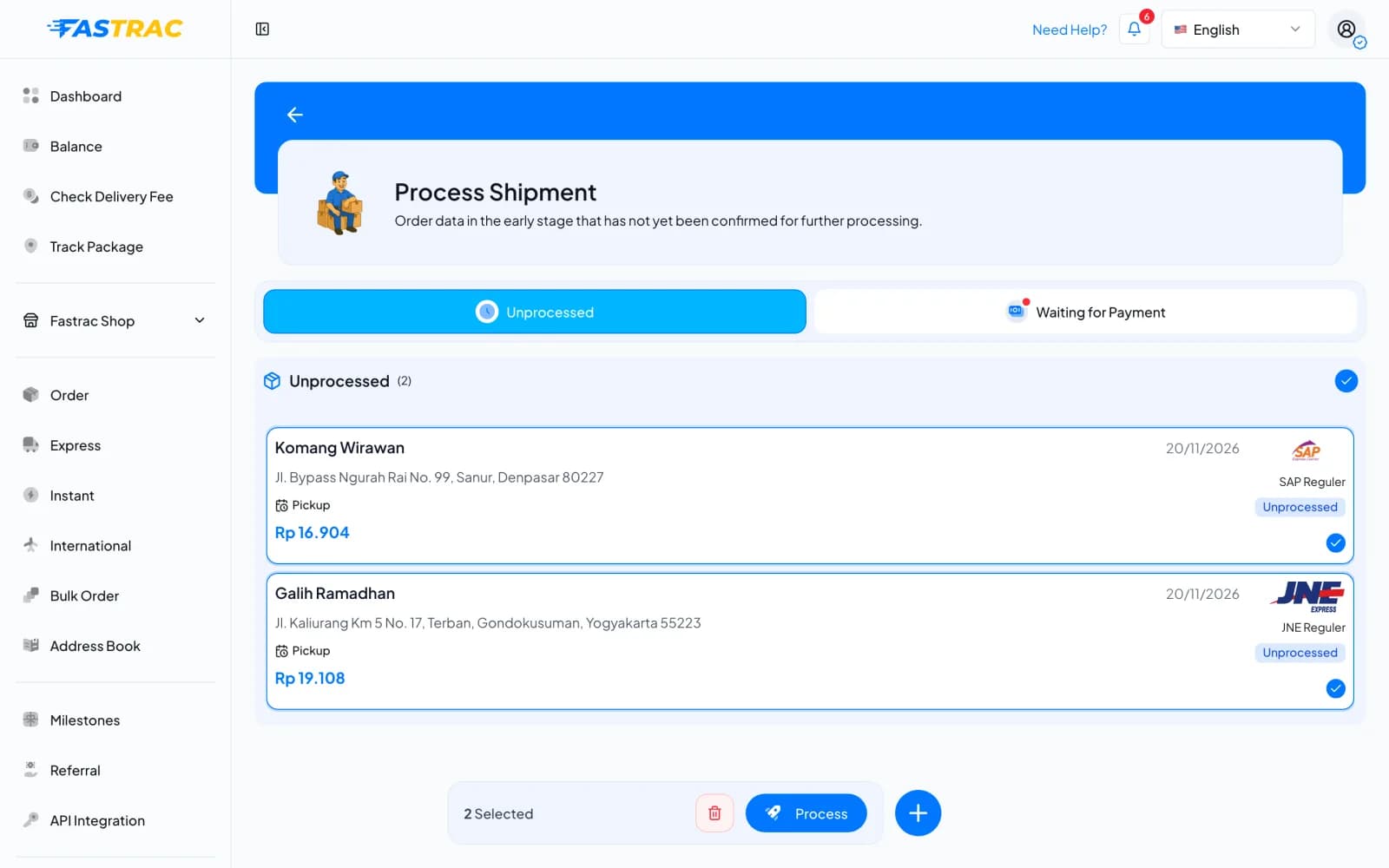
The cart lets you prepare several shipments, check them, and pay for them together. In the dashboard the cart is the Process Shipment page (open Express in the sidebar). When you process the shipments you select, they become one order with one payment.
Who can do this
- Your account must be verified, and your role must allow creating orders.
- When you process the shipments you need enough balance to pay for all of them, or you pay with QRIS.
Steps
Add shipments to the list
- Fill in a shipment as for a single shipment: sender, recipient, item details, delivery method and courier.
- On Review Order, click Add to Shipment List instead of Pay Now. The Process Shipment page opens.
- To add another shipment, click the + button at the bottom and repeat.
Review and process the list
- Open Express in the sidebar. The Unprocessed tab lists every shipment you added, with the recipient, the address, pickup or drop-off, the price and the courier.
- Select the shipments you want to send now. The checkbox next to the list title selects all of them. The bar at the bottom shows how many are selected.
- To remove shipments, select them and click the trash icon.
- Click Process. The selected shipments become one order.
- Pay the order in Select Payment Method (QRIS, Shipping Credit or Payout Balance). After payment, each shipment is booked with its courier and gets its own airway bill (resi).
Orders you processed but haven't paid yet wait on the Waiting for Payment tab. Click Continue to Pay to pay them.
Prices and pickup times are checked when you process
If a shipment's rate has expired, Fastrac gets a new price when you open the list or click Process. When a price changed at Process, Shipping Price Changed shows the new prices; click Continue with New Price to go on.
Pickup times that have passed
If a selected shipment's pickup time is now too close or already passed, Pickup Schedule Has Passed lists those shipments. Choose a new schedule for each of them (or Delete & Re-create them), or click Process … Others to process the rest first. The list also shows a banner with Update All and Update Schedule to change passed pickup times at once. A new schedule can change the price.
Limits
| Item | Limit |
|---|---|
| Shipments per order | All the shipments you select before you click Process |
| COD and non-COD | Can't be mixed in one order: process them separately |
| Earliest pickup | 15 minutes from now (ID Express 2 hours, Paxel 1 hour) |
| Pickup time change | Only for pickup shipments; drop-off shipments have no pickup time |
FAQ
Rates are only valid for a short time. When a cart item's rate expires, Fastrac asks the courier for a new price. Changing the pickup time also gets a new price, because most couriers price the pickup time.
The courier no longer offers that service for this parcel or route. Remove the item and check rates again.
Yes. Only the shipments you select are processed. The rest stay on the Unprocessed tab.
No. Each shipment is booked and tracked separately, with its own status and airway bill. They only share one payment.
Was this page helpful?