

Contact support with a ticket
Open a support ticket, attach files, link a shipment, and follow its status.
- Product
- APPFastrac App
- Section
- Support
- Reading time
- 3 min read
If something goes wrong, open a support ticket from the dashboard. Linking the shipment and adding screenshots helps the Fastrac team solve it faster.
Who can do this
Any signed-in user. You see only the tickets you opened.
Open a ticket
-
Select Support Ticket in the sidebar and select Create Ticket.
-
Fill in the Create Support Ticket form:
Field Required Notes Ticket title Yes A short summary, 3 to 150 characters Issue description Yes What happened, what you expected, and when (up to 5,000 characters) Attachments (optional) No Up to 3 JPG, PNG or WebP images, 5 MB each, such as screenshots or photos of the parcel Issue category Yes Shipping delay (default), Shipment issue, Payment, Account or Other Shipment code (optional) No The order ( FSO-…) or shipment (SHP-…) code this is about -
Select Create Ticket. Your ticket gets a number such as
TCK-…and starts as Pending.
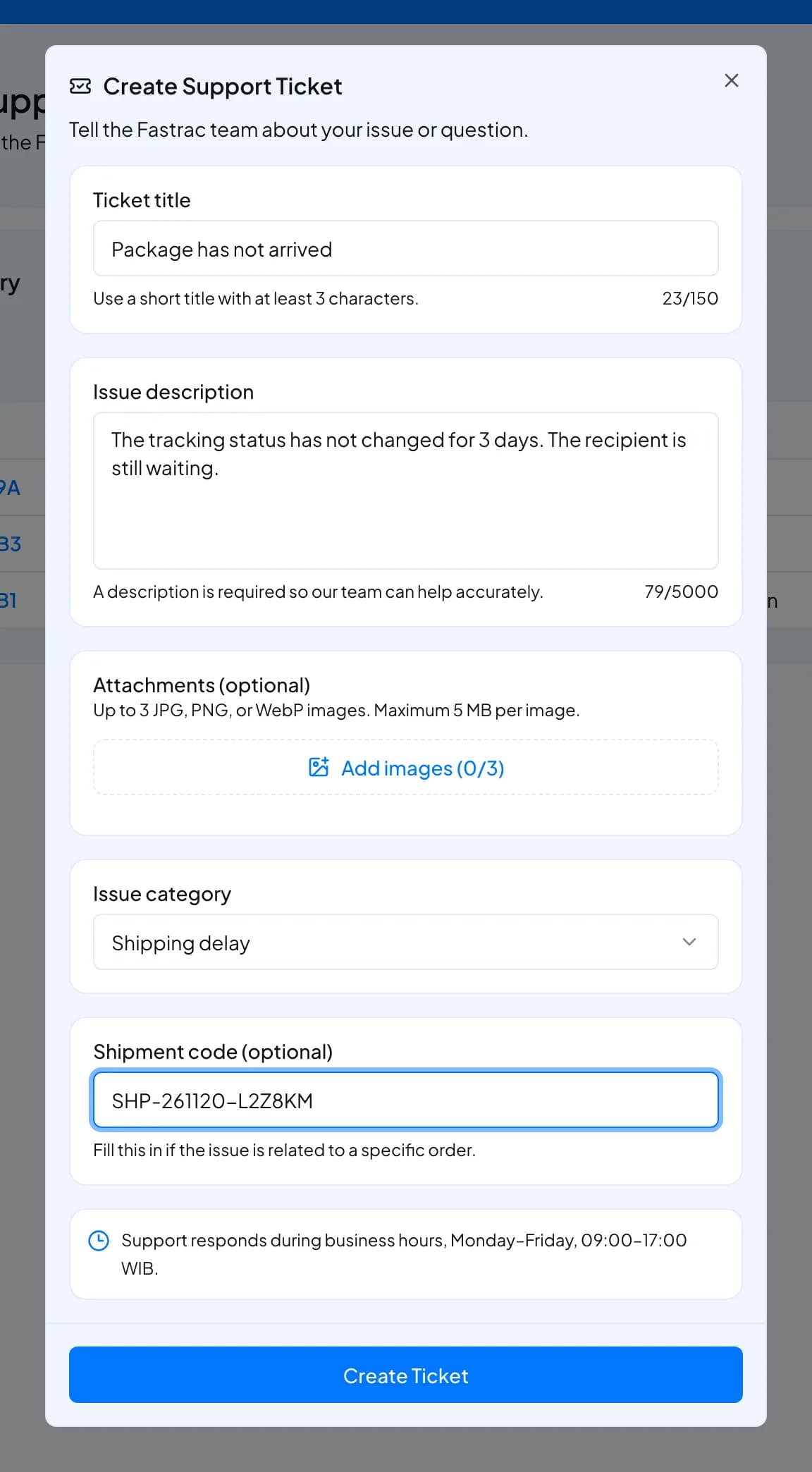
The support team answers during business hours, Monday to Friday, 09:00 to 17:00 WIB.
Tips for a quick answer
- One problem per ticket.
- Always add the shipment code when the problem is about a shipment.
- For money questions, add the date and amount from your balance history.
- For damaged parcels, attach photos of the packaging and the contents.
Follow your ticket
Open Support Ticket to see your tickets under Ticket History, with their number, title, category, status and creation time. Select a ticket to see its details, including its handling priority, which the support team sets.
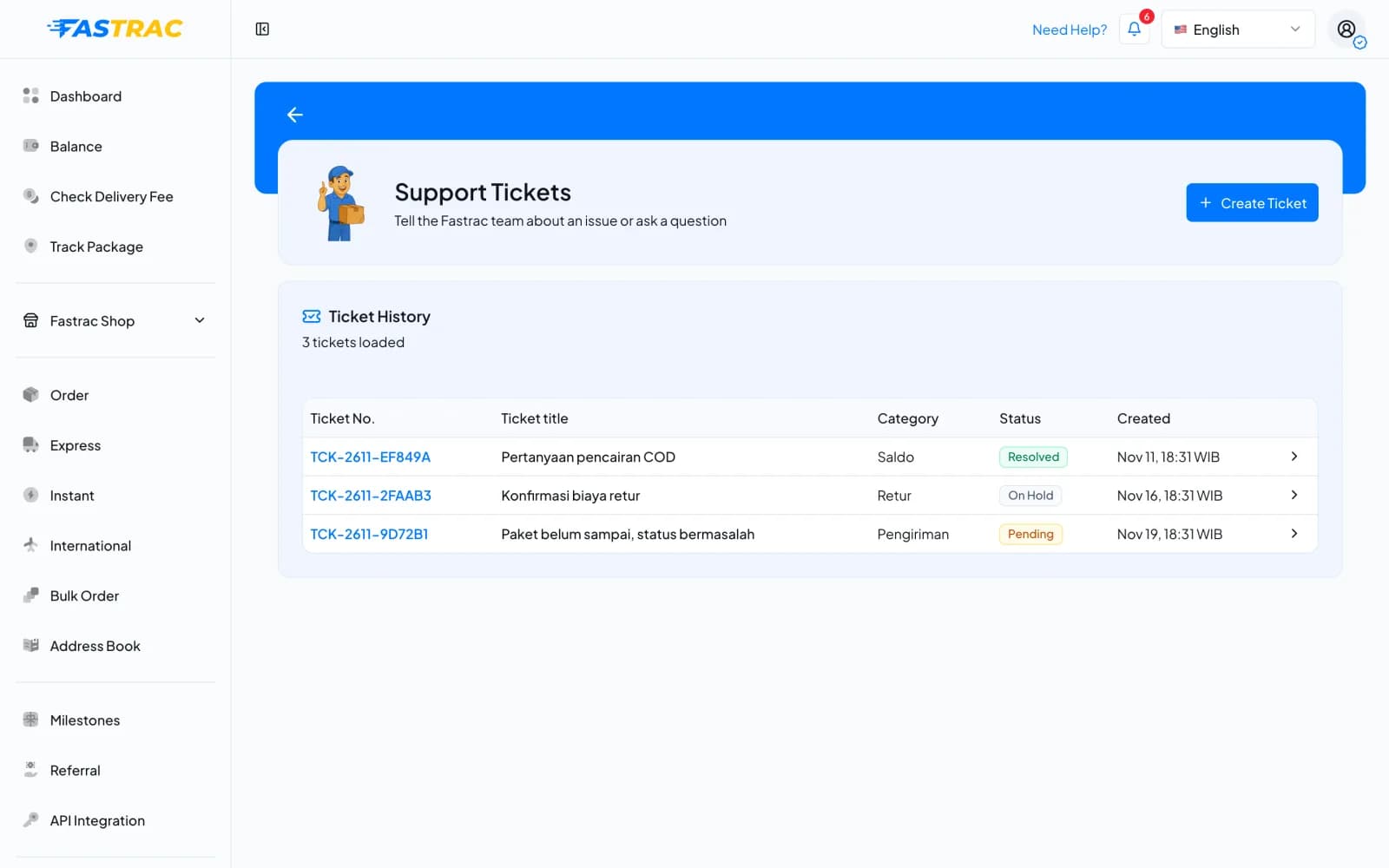
| Status | Meaning |
|---|---|
| Pending | Received and waiting for, or being handled by, the support team |
| On Hold | On hold, for example while the team waits for the courier or for more information from you |
| Resolved | The team has resolved the ticket |
Fees and limits
| Item | Value |
|---|---|
| Cost | Free |
| Ticket title | 3 to 150 characters |
| Issue description | Up to 5,000 characters |
| Attachments | Up to 3 images per ticket (JPG, PNG or WebP, 5 MB each) |
| Shipment codes per ticket | One |
FAQ
No. If you forgot something, open a new ticket that mentions the first one.
Put the most important shipment code in the shipment field and list the others in the description.
Check the ticket's status in the dashboard. The support team may also contact you using the details on your profile.
Check your balance history and notifications first. If the charge still looks wrong, open a ticket with the shipment code.
Was this page helpful?