

Notifications
Which notifications Fastrac sends, where you receive them, and how to mark them as read.
- Product
- APPFastrac App
- Section
- Support
- Reading time
- 3 min read
Fastrac tells you when something important happens to your shipments, money or account. You see notifications in the dashboard and the mobile app, and some also arrive by email.
Who can do this
Any signed-in user. Notifications are personal: each person sees only their own.
Where notifications arrive
| Channel | What you get |
|---|---|
| Notification inbox (dashboard and app) | Every app notification, with an unread counter |
| Push notification (mobile app) | The same notifications on your phone, on every device where you're signed in to the app |
| Detailed messages for price adjustments and return (RTS) bills, and some Fastrac Shop events |
Types of notifications
| Topic | You're notified when | Channel |
|---|---|---|
| Shipments | A shipment is delivered, cancelled, or returned to you (RTS) | Inbox and push |
| Price adjustments | The courier re-weighed a parcel and the price went up: the difference was taken from your balance, or is billed to you, or a bill was paid | Inbox and push, plus a detailed email |
| Return (RTS) fees | A return fee was taken from your balance, or is still unpaid | Inbox and push, plus a detailed email |
| Top-ups | A QRIS top-up succeeded | Inbox and push |
| Withdrawals | A withdrawal was approved or rejected (with the reason) | Inbox and push |
| Business verification | Your KYC application was accepted or rejected (with the reason) | Inbox and push |
| Fastrac Shop | A buyer sent proof of a manual payment, or a store order needs your action | Inbox and push (manual payments also by email) |
| Announcements | Fastrac sends news to users | Inbox and push |
Select a notification to open the related page, for example the shipment or your balance.
Steps: read and clear notifications
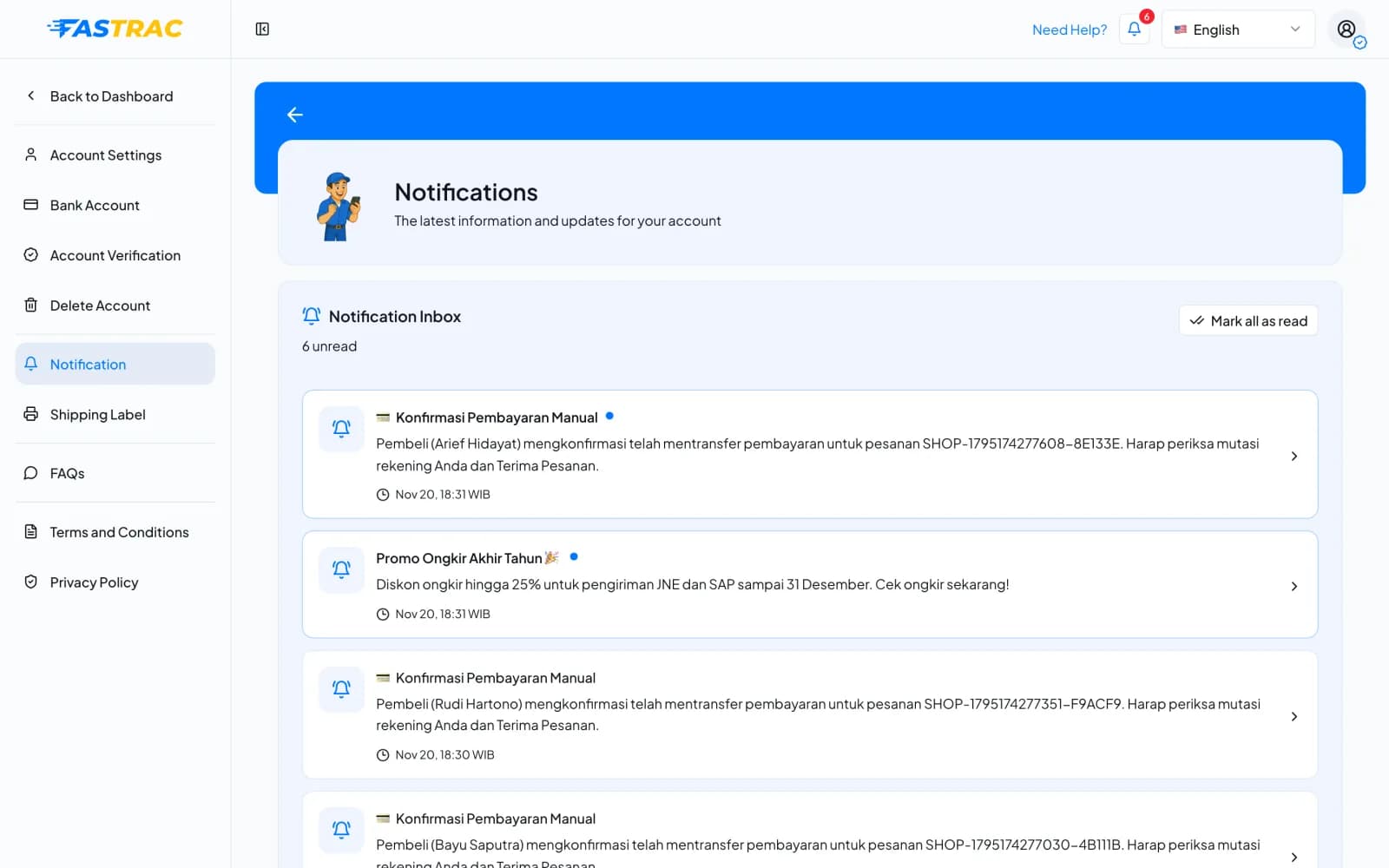
- Select the bell at the top of the dashboard, or open Settings → Notification. The red counter on the bell and the unread count in the Notification Inbox show how many you haven't read. Unread notifications have a blue dot.
- Select a notification to read it and mark it as read.
- To clear everything at once, select Mark all as read.
Get push notifications on your phone
- Install the Fastrac mobile app and sign in.
- Allow notifications when your phone asks.
If you sign out of the app, that device stops receiving push notifications. To stop them without signing out, turn off notifications for the app in your phone's settings.
Fees and limits
| Item | Value |
|---|---|
| Cost | Free |
| Notifications per page | 20 by default, up to 50 |
| Choosing which types you receive | Not available. You can turn push off in your phone's settings. |
FAQ
Make sure you're signed in to the mobile app and that notifications are allowed for the app in your phone's settings. Your inbox in the dashboard still shows every notification.
Check your spam folder. The same adjustment also appears in your inbox and in your balance history.
No. Notifications are sent to the person they concern, for example the person who booked the shipment.
Yes, with webhooks. Ask your developers to set up a webhook endpoint.
Was this page helpful?